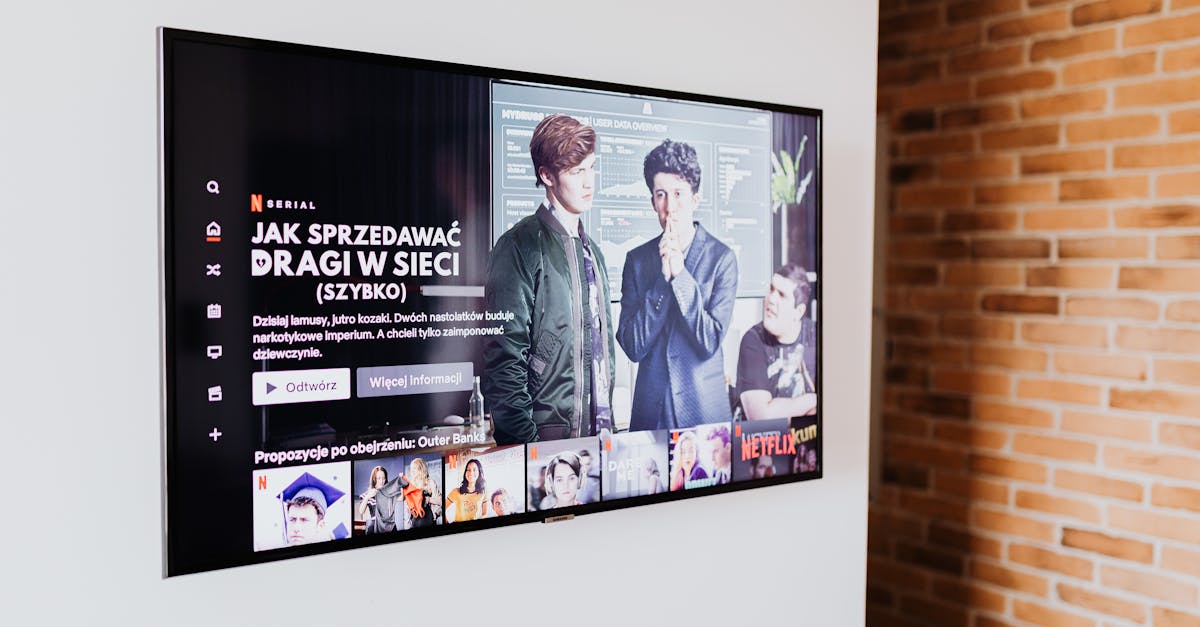
5 Unexpected Reasons Your Smart TV Is Slower Than Advertised
You bought a new smart TV last Black Friday, seduced by the promise of lightning-fast apps, seamless streaming, and an intuitive interface. The sales person practically guaranteed a fluid, responsive experience. Yet, just a few months in, you find yourself staring at a loading spinner, frustrated by jerky menu navigation, or buffering through your favorite 4K movie. It feels like you’ve been duped, right? Your brand-new, supposedly ‘smart’ TV is acting dumber than an old rabbit-ears set.
I’ve been there. My first dive into smart TV ownership was met with similar disillusionment. I spent hours troubleshooting, convinced it was my internet speed or the streaming service. What I eventually discovered, after much head-scratching and deep dives into tech forums, was that the problem often wasn’t where I expected it to be. The advertised speed and performance are often theoretical, based on ideal conditions that rarely exist in a typical home. Moreover, many of the issues are self-inflicted or easily overlooked, rather than a fundamental flaw with the hardware itself. It’s a frustrating cycle that traps countless users, leading to premature upgrades or just resigned acceptance of a subpar experience.
My experience taught me that the perceived slowness isn’t always about your internet, a bad app, or even an underpowered processor. More often, it’s a combination of subtle, often counterintuitive factors that quietly choke your TV’s performance. The good news? Most of these are fixable with a bit of informed adjustment, saving you from unnecessary frustration and perhaps even a costly, premature upgrade.
Key Takeaways
- Disable automatic content recognition (ACR) and targeted ads to free up system resources.
- Optimize your Wi-Fi channel to minimize interference from neighboring networks.
- Manage background app refresh and disable unnecessary pre-installed bloatware.
- Adjust motion smoothing and upscaling settings to reduce processor load.
- Perform regular soft resets and factory resets to clear accumulated system junk.
1. Automatic Content Recognition (ACR) and Targeted Ads Secretly Consume Resources
When you first set up your smart TV, you’re usually eager to get to the streaming. You click through the initial setup screens, often agreeing to terms you haven’t fully read, just to get to the good stuff. What many people don’t realize is that embedded deep within these settings is something called Automatic Content Recognition, or ACR. This feature, along with related settings for targeted advertising, is a silent killer of your TV’s performance. It’s designed to identify what you’re watching, across all inputs, to gather data for personalized ads and content recommendations. This isn’t just happening when you open a streaming app; it’s constantly running in the background, analyzing every pixel and audio cue.
In my own living room, I noticed a distinct sluggishness in menu navigation and app loading, even when I wasn’t actively streaming. After some research, I dove into my Samsung’s settings and found multiple options related to “Smart Hub Personalization Service,” “Voice Recognition Services,” and “SyncPlus & Marketing.” While the exact names vary by brand (LG has “LivePlus,” Sony uses “Samba Interactive TV”), the function is the same: always-on data collection. This constant processing taxes your TV’s relatively modest CPU and RAM, leaving fewer resources for the actual tasks you want your TV to perform, like launching Netflix or smoothly scrolling through the app library. Think of it like having a dozen invisible apps constantly running on your smartphone, even when you’re just trying to open your camera.
The impact isn’t trivial. Imagine your TV allocating 10-20% of its processing power and memory just to identify what’s playing in the background, send that data to a server, and receive new ad targeting instructions. For a device that’s often less powerful than a budget smartphone, this is a significant drain. To reclaim these resources, you need to actively seek out and disable these features. This usually involves navigating through privacy settings, often nested deep within the system menu. Look for terms like “interest-based advertising,” “personalized content,” “viewing information,” or “data services.” While you might lose some personalized recommendations, the trade-off in improved responsiveness is almost always worth it. It’s a bit like giving your TV a much-needed breathing room, allowing it to focus its energy on delivering your entertainment without interruption.
2. Your Wi-Fi Channel Is Crowded, Even If Your Signal Is Strong
When your smart TV feels slow, the first culprit most people suspect is their internet connection. And while internet speed certainly plays a role, a strong Wi-Fi signal alone doesn’t guarantee a smooth experience. What’s often overlooked, and far more insidious, is Wi-Fi channel congestion. Even with a full-bars signal, if your Wi-Fi channel is saturated with traffic from your neighbors’ networks, it can lead to frustrating slowdowns and buffering, especially with demanding 4K content.
I learned this the hard way in my previous apartment building. My Wi-Fi signal was excellent, according to my TV’s diagnostics, but streaming was consistently choppy, and my smart TV apps took ages to load. It felt like trying to drive on a highway during rush hour, even though my car was perfectly fine. The issue was that everyone in my building was using the default Wi-Fi channels (typically 1, 6, or 11 for 2.4 GHz, and often the lower channels for 5 GHz). This creates a digital traffic jam, where data packets collide and have to be re-sent, slowing everything down. Your TV might show a strong signal, but the actual data throughput is crippled by interference.
The solution lies in optimizing your Wi-Fi channel. Most modern routers can scan for the least congested channels and switch to them. For 2.4 GHz networks, stick to channels 1, 6, or 11, as these are non-overlapping. For 5 GHz, you have more options, but interference can still be an issue. You can use a Wi-Fi analyzer app on your smartphone to visualize the channel usage in your area. Once you identify a less crowded channel, log into your router’s administration panel (usually via a web browser using its IP address like 192.168.1.1) and manually change the channel. This simple adjustment can dramatically improve your TV’s ability to receive and process data, often providing a noticeable boost in streaming quality and app responsiveness that feels far more significant than simply upgrading your internet speed. It’s like finding a secret, empty lane on that congested highway, allowing your data to flow freely.
3. Background App Refresh and Bloatware Drain Performance
Just like your smartphone, smart TVs come pre-loaded with a variety of applications. Some are useful, like Netflix or YouTube. Others are often bloatware—apps you’ll never use but are constantly running or trying to update in the background. Beyond bloatware, many legitimate apps have background refresh capabilities, allowing them to fetch new data or content even when you’re not actively using them. This combination creates a significant, hidden drain on your TV’s processing power and precious RAM.
I discovered this when my LG TV started showing signs of extreme lag, taking 30 seconds or more to open basic apps. I realized I had accumulated a digital graveyard of apps, many of which I’d opened once and forgotten. Each one, in its own small way, was vying for system resources. Think about a weather app constantly trying to update its forecast, or a news app fetching headlines, even if you’re deep into a movie on a different input. These micro-activities add up, collectively slowing down the entire system. Your TV’s operating system is designed to multitask, but its hardware limits are far stricter than those of a premium smartphone or computer.
The fix involves a two-pronged approach: disabling background app refresh and uninstalling bloatware. First, scour your TV’s settings for options related to “background app refresh,” “auto-start apps,” or “app permissions.” Limit these where possible for apps you don’t use constantly. Second, actively uninstall any apps you don’t use. This frees up storage space, but more importantly, it prevents those apps from running background processes or consuming memory. On some TVs, certain bloatware cannot be fully uninstalled, but you can often “force stop” them or disable their notifications and background data usage, effectively quarantining them. Periodically reviewing your app library and performing this digital declutter can provide a surprising performance boost, making your TV feel far more responsive and efficient, as if it’s finally working for you, not against you.
4. Motion Smoothing and Upscaling Settings Overwhelm the Processor
Modern smart TVs often boast advanced picture processing technologies like motion smoothing (also known as the “soap opera effect”) and upscaling. While designed to enhance your viewing experience by making fast-moving scenes appear smoother or lower-resolution content look sharper on a 4K screen, these features demand a significant amount of processing power. When your TV’s internal processor is constantly working overtime to generate artificial frames or fill in pixels, it leaves fewer resources for basic system operations, leading to noticeable lag.
My personal breaking point came during a sports broadcast. I had motion smoothing cranked up, thinking it would make the game look incredible. Instead, the entire TV interface felt like it was wading through molasses. Opening the guide or switching inputs was a painful exercise in patience. It turns out, forcing the TV to analyze every frame and create new, interpolated frames in real-time is incredibly taxing. Similarly, if you’re feeding your 4K TV a lot of standard definition or 720p content, the constant upscaling process can put a heavy burden on the processor, especially on mid-range or budget models.
The counterintuitive solution here is to reduce or disable these “enhancement” features. For motion smoothing, look for settings like “MotionFlow,” “TruMotion,” “Auto Motion Plus,” or similar terms in your TV’s picture settings. Experiment with lower settings or turn it off entirely, especially for movies and TV shows where it can actually make content look unnatural. For upscaling, while you can’t typically disable it completely (your TV has to display something), you can minimize its impact by ensuring you’re feeding your TV the highest quality source possible. The less your TV has to artificially enhance, the more processing power it has for general system responsiveness. By reducing the workload on the TV’s brain, you’ll often find that menu navigation becomes snappier, apps launch faster, and the overall experience feels much smoother, even if the picture isn’t quite as artificially “enhanced” as before. Sometimes, less processing is actually more performance.
5. Infrequent Soft Resets and Neglected Factory Resets Allow Digital Grime to Accumulate
We restart our computers and phones regularly to clear out temporary files, refresh memory, and resolve minor software glitches. Yet, many people leave their smart TVs running for weeks, if not months, without ever truly restarting them. This oversight allows digital grime—temporary data, cached information, and minor software conflicts—to accumulate, leading to a gradual but noticeable degradation in performance over time. Think of it like leaving your car running 24/7; eventually, components will get bogged down and less efficient.
My own routine used to involve simply turning the TV off with the remote, which often just puts it into a low-power standby mode, not a full reset. I only realized the impact of this neglect when my smart TV started freezing randomly. A tech support representative suggested I perform a “power cycle.” This isn’t just turning it off with the remote. It means unplugging the TV from the wall socket, waiting for at least 60 seconds to ensure all residual power drains, and then plugging it back in. This simple act can work wonders, forcing the TV to fully restart its operating system and clear out many temporary issues.
For more stubborn, long-term slowness, a factory reset is often the nuclear option that brings your TV back to its out-of-the-box speed. While inconvenient (you’ll lose all your settings, downloaded apps, and logged-in accounts), it wipes the slate clean, eradicating all accumulated digital clutter and potential software conflicts. I perform a factory reset on my main smart TV about once a year, or whenever performance drops noticeably despite regular power cycling. It’s a drastic step, but the performance gain is usually immediate and dramatic, making the setup effort worthwhile. Regular soft resets (power cycling) and occasional factory resets are crucial maintenance steps for any smart device, and your smart TV is no exception. They ensure your TV isn’t just running, but running optimally, free from the invisible burden of accumulated digital junk.
Frequently Asked Questions
Q1: My TV is brand new and already feels slow. What could be the primary reason?
A1: Even new TVs can feel slow if their default settings enable resource-intensive features like Automatic Content Recognition (ACR) and targeted advertising. These run in the background, consuming processing power and memory that could otherwise be used for smoother navigation and faster app loading. Check your privacy and smart features settings first to disable them.
Q2: Is my internet speed the main factor in smart TV performance?
A2: While internet speed is crucial for streaming high-resolution content, it’s often not the sole reason for general sluggishness. Wi-Fi channel congestion, even with a strong signal, can significantly impact data throughput. Also, internal TV processing power, background apps, and specific picture settings can make the TV feel slow independently of your internet connection.
Q3: How often should I power cycle (soft reset) my smart TV?
A3: I recommend power cycling your smart TV at least once a month, or whenever you notice a drop in performance, unexpected glitches, or app crashes. Unplugging the TV from the wall for a full minute ensures a complete system reset, clearing temporary data and refreshing its operating system.
Q4: Does turning off motion smoothing really make a difference in performance?
A4: Yes, motion smoothing (and other intensive picture processing features like advanced upscaling) demands significant processing power from your TV’s internal chip. Disabling or reducing these settings, especially on mid-range or budget models, can free up valuable resources, leading to snappier menu navigation and faster app responsiveness, even if the visual effect was something you initially liked.
Q5: What is the last resort for a persistently slow smart TV?
A5: A factory reset is the most effective last resort for a persistently slow smart TV. It returns the TV to its original factory state, wiping all downloaded apps, settings, and accumulated software issues. While inconvenient (requiring re-setup), it often dramatically improves performance by eliminating all digital clutter and conflicts.
Reclaiming the speed and responsiveness of your smart TV isn’t about magical upgrades or spending more money. More often than not, it’s about understanding the subtle, often hidden processes that silently drain its performance. By taking control of background data collection, optimizing your network environment, managing applications, being mindful of processor-heavy picture settings, and performing routine resets, you can transform your sluggish TV into the smooth, intelligent entertainment hub you initially envisioned. Don’t let your smart TV fall victim to digital grime and overlooked settings. Take these steps and enjoy the fluid experience you deserve.
Written by Lena Petrova
Relationships & Leisure
Lena, a retired educator, shares wisdom on fostering strong relationships and cultivating enriching hobbies.
You Might Also Like
Lifestyle
Secure Your Home Network After a Firmware Update Without Reconfiguring Every Device
Lifestyle
The 60-Degree Rule for Home Heating and Cooling: Why It's Often Misunderstood
Lifestyle